01Tutorials
Revit Update Manager: install, run, schedule and connect it to Claude
From the installer to a project that updates itself overnight — and an AI that can run it for you.
 Video coming soon
About this video
1. Install
Install it from the Archqube launcher (it keeps it updated and licensed), or run RevitUpdateManager-Setup.exe yourself: per Windows user only — no administrator rights, no restart — into Programs › Revit Update Manager in your user folder. Installing over an older copy keeps your project list and settings.
2. First start and the licence
The first start shows the Archqube licence window. Start the free trial or sign in to your licence; from then on the program opens directly and checks the licence quietly every two days.
3. Add a project
- Press Add and give the project its name and base project path on the shared drive.
- Incoming source folders: every folder where consultants drop their deliveries. Live ACC folders: the synced Autodesk Construction Cloud folders, if the project uses them.
- Archive folder and update folder suffix: where each delivery is kept, dated.
- One destination per discipline — Architectural (AR), Structural (ST), MEP, Other and Navisworks (NWC / NWD). Tick Skip for any discipline this project does not have.
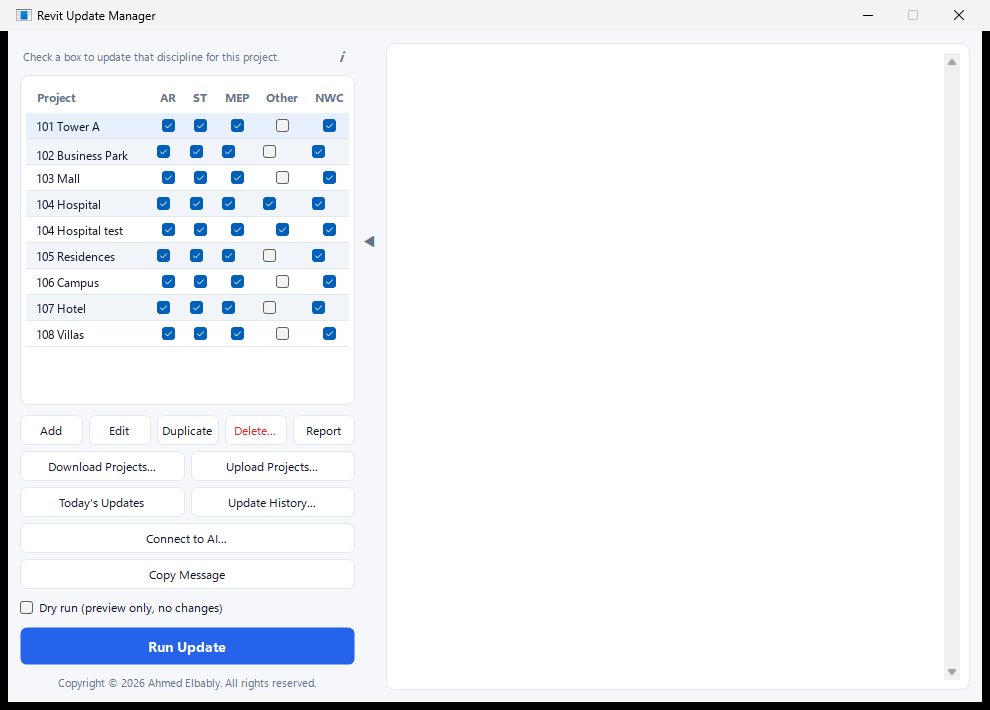
- Press Save. The project appears in the list with a tick box per discipline.
Tip: Duplicate copies a project’s folders and settings, so a second project of the same client takes a minute. Download Projects… and Upload Projects… move the whole list between computers.
4. Run an update — dry run first
In the project list, tick AR, ST, MEP, Other or NWC for every project you want to update now. Tick Dry run (preview only, no changes) and press Run Update: the program searches the incoming and ACC folders for the newest delivery of each discipline and lists what it would archive and copy — without touching a file. If a folder is wrong, fix it with Edit. Then untick Dry run and press Run Update again: every delivery is first copied into the project archive, then distributed to the destination folder of its discipline. A report opens when it is done; Report shows the last one again at any time.
5. Tell the team
- Today’s Updates lists everything updated today across all projects.
- Update History keeps every run with its date, project and files.
- Copy Message puts a ready-made notice on the clipboard — paste it into Teams or an email.
6. Run it overnight
The program can run without its window: RevitUpdateManager.exe --run "Project name" updates that project exactly as the window would, using the disciplines ticked for it. Create a task in Windows Task Scheduler that starts this command at night, once per project, with your Windows user and Run whether user is logged on or not. The exit code tells the scheduler what happened: 0 updated without errors, 1 updated with errors in the report, 2 no project with that name, 3 the run failed, 4 this copy is not licensed (nothing was done). Reports and the history are written in the project’s own folders, the same as a run from the window.
7. Connect it to Claude
Press Connect to AI… in the window. It sets up the built-in connector (RevitUpdateManager.McpServer.exe, an MCP server) in Claude Desktop or any other app that speaks MCP. From then on you can ask the AI to list the projects, run the update for 669 KSR, show today’s updates, the update history or the last report — it uses the same project list and folders as the window. A scheduled or AI-started run still needs a licensed copy, otherwise it ends with exit code 4.